Mini Data Extraction in EasySLR
The Mini Data Extraction feature in EasySLR allows teams to extract a focused set of predefined fields during the screening process. It's ideal when only high-level or limited data is required before full-scale data extraction begins.
Watch the Video: https://youtu.be/Gc2g_6sTSIA
Watch the Video: https://youtu.be/Gc2g_6sTSIA
How to Set Up Mini Data Extraction
- Click on Settings.
- Open the Mini Data Extraction tab.
- Setting Up the form
- Click Add Field to define your data points.
- Enter a Field Name.
- Choose an Input Type:
- Text
- Multi-select
- Yes/No
- Mark fields as Required, if necessary.
- Choose whether a conflict applies based on the data filled (useful during the QC).
- Click Save Changes to save your form.
- Repeat to add as many fields as needed for:
- Title-Abstract screening
- Full-Text screening
Reuse Mini DE templates
- Reuse saved Mini DE fields for the relevant review stage without importing the full extraction form.
- Preview the fields before adding them to your project.
- Choose to add the template’s Mini DE fields or replace the existing fields for that stage.
- Imported Mini DE fields receive new IDs, keeping them independent of the source template.
- Edit the imported fields to match your project’s requirements.
Note: You can add up to 30 fields with a maximum of 60 options per field. More information can be accessed by clicking on the ‘i’ button.
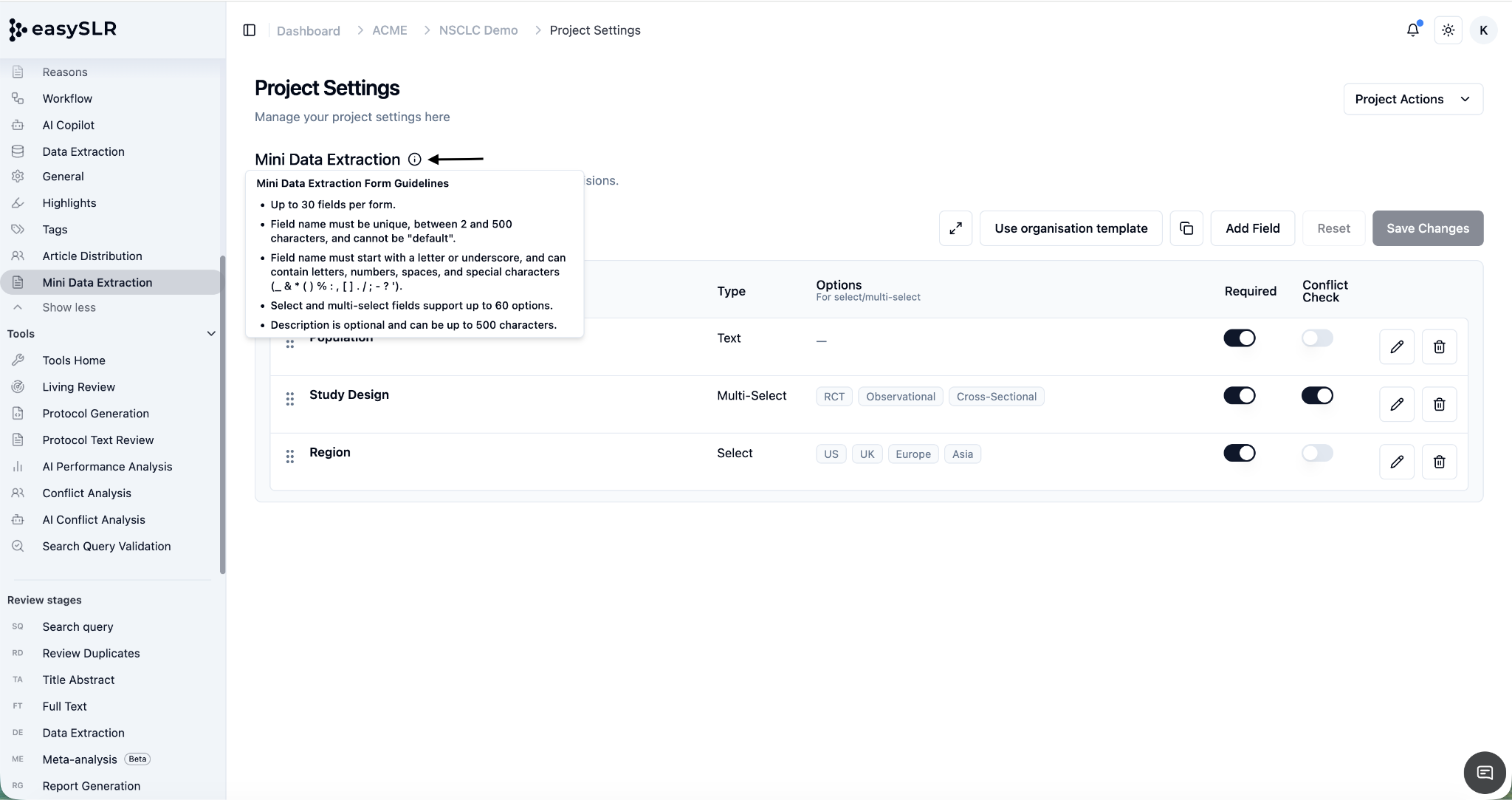
Other available options: Copy the entire form from Title-abstract to full-text or vice-versa. Copying the form will also carry over the final values entered in each field to the other screening stage.
Enabling AI for Mini Data Extraction
- Navigate to: AI Copilot → Title Abstract/ Full Text Mini DE AI
- Enable AI
Rerun AI by Clicking on Rerun AI at Title Abstract/Full Text Mini Data Extraction AI Suggestions Refresh.
Choose the relevant option and Rerun AI.
You can further review, add, or update the AI-extracted data as needed.
AI-extracted data will be available in separate columns in the Excel file, along with the AI decisions.
How to Manually Add Data During Screening
- Go to Screening Stage
- Navigate to Articles to Review in either the Title-Abstract or Full-Text screening tab.
- Enter Data
- For each article, the Mini Data Extraction fields will appear.
- Fill out the relevant information before submitting a decision.

- Exporting Your Data
- Go to the Articles tab.
- Click Download > Download All to Excel.
- The exported file will include:
- All Mini Data Extraction fields
- Decisions by each reviewer

Functional Workflow:
When Decisions Match:
- If Reviewer 1 (R1) and Reviewer 2 (R2) decisions match:
- The Final Decision and Mini Data Extraction values are finalised based on the hierarchy order of the reviewers.
When Decisions Conflict:
- If R1 and R2 decisions differ:
- The Final Reviewer will be presented with
- Inputs from R1 and R2 for direct comparison.
- Final Reviewer Actions:
- Copy values directly from R1 or R2.
- Edit copied values or input new values.
- Save the data.
- The data will be mapped against the final reviewer
QC:
- The project owner can apply filters to refine the list of articles as needed.
- Articles can be filtered based on the information entered in the Mini Data Extraction (Mini DE) fields.
- Additionally, articles with mismatched reviewer inputs can be identified using the Mini DE Conflict filter (this can be set up from settings).
- During the decision override, the project owner can view Mini DE data from all reviewers and make necessary edits or updates.
Tips
- You can customise fields per screening stage.
- Use Mini Data Extraction to quickly gather structured information early in your workflow.
Notes
- Only project owners or users with edit access can modify Mini Data Extraction settings.
- Data captured here complements, but does not replace, full data extraction.
- AI outputs should be reviewed and validated
Q. Can I choose which fields AI processes for Mini Data Extraction?
A. You can choose to run AI on all fields or only on fields that have not yet been extracted. However, you cannot select specific individual fields for AI processing.
Need Help?